
Forest Joystick Mouse Hub
The Forest Hub gives you a solid starting point if you want to use an analog joystick and one or more assistive switches as a USB mouse or a gamepad.
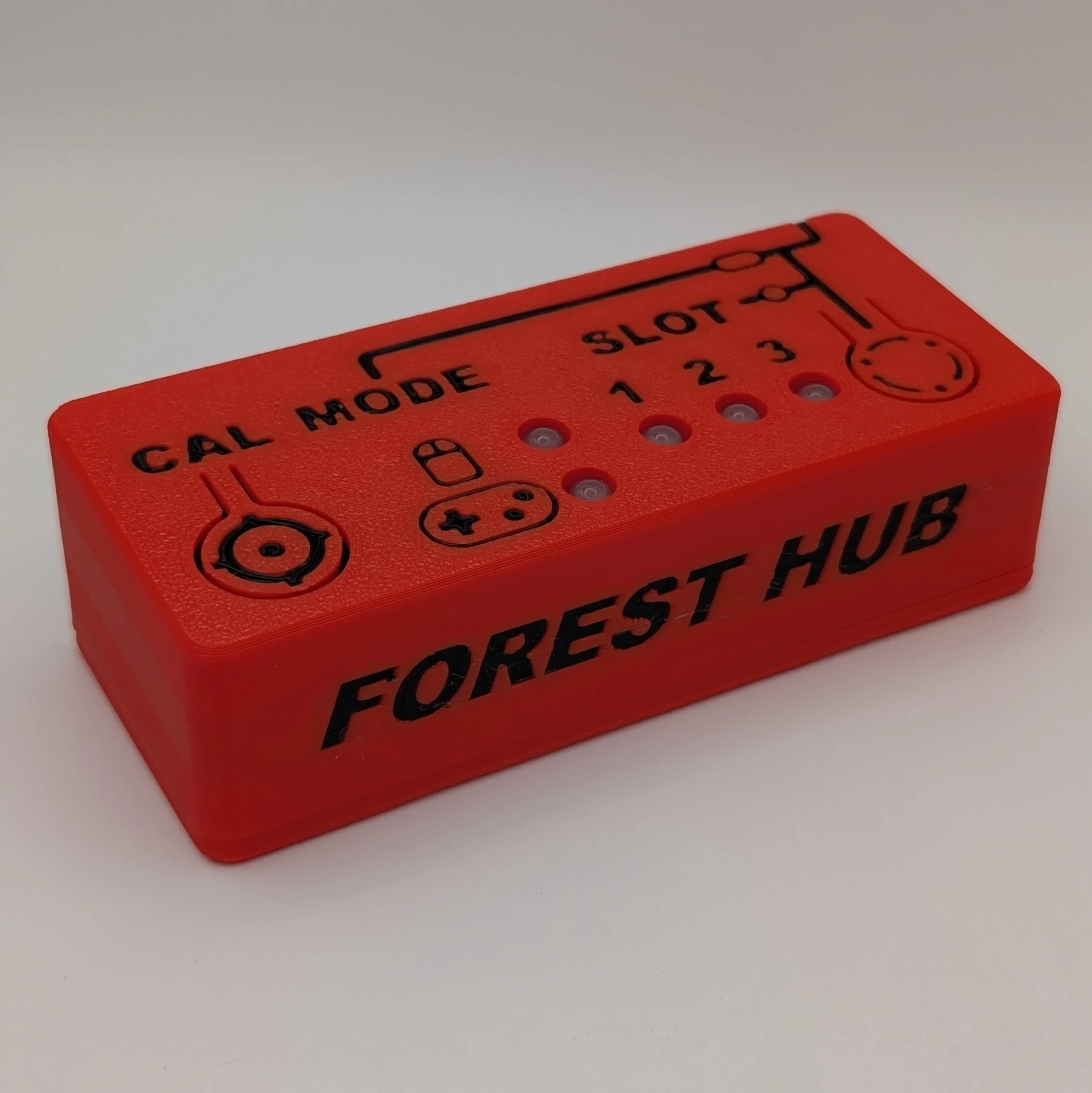
What it is
The OpenAT Forest Joystick Mouse Hub, or Forest Hub for short, lets you connect an analog joystick and up to four assistive switches so they work like a USB mouse or a USB gamepad. One more assistive switch can be used to move between slots and to switch between mouse mode and gamepad mode.
It works with computers, tablets, mobile phones, and the Xbox Adaptive Controller. Pair it with an analog joystick such as the Oak Compact Joystick or the Spruce Mini Joystick, plus one or more assistive switches.
Who it helps
This is a key part of an access solution for people who find a normal mouse or game controller hard to use. It is especially helpful if you have limited finger or hand movement.
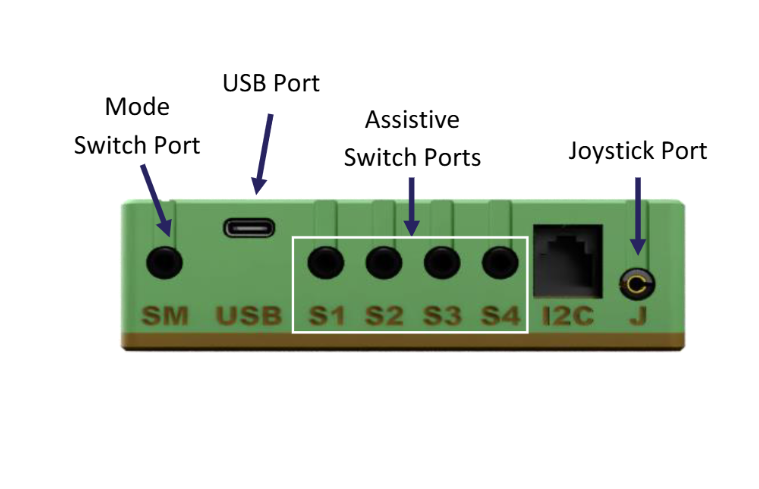
Ports on the back
- SMMode switch port
- USBUSB-C port
- S1 to S4Assistive switch ports
- I2CExpansion port
- JJoystick port
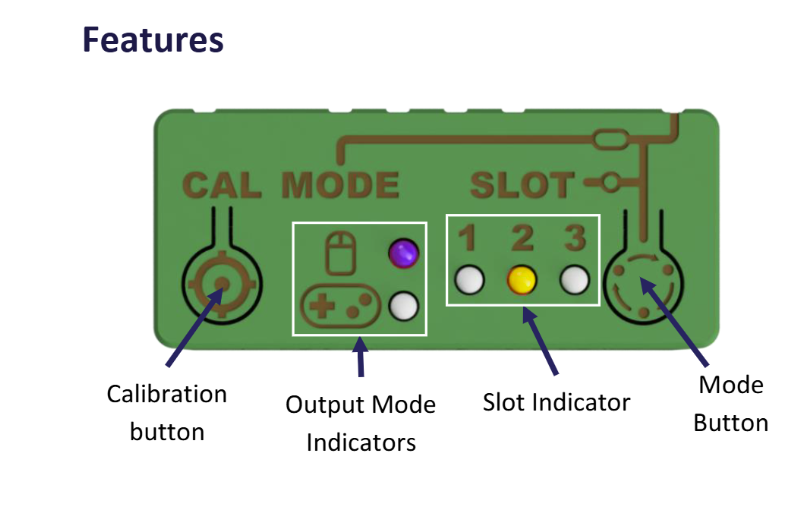
Buttons and lights on top
- Calibration buttonSets the joystick centre point
- Output mode lightsShows if you are in mouse or gamepad mode
- Slot lights 1 to 3Shows which settings slot is active
- Mode buttonShort press changes slot, long press changes mode
How to set it up
- 1
Plug the analog joystick into the joystick port marked J.
- 2
Plug your assistive switches into the switch ports marked S1, S2, S3, and S4.
- 3
If you want one more switch for changing settings, plug it into the port marked SM.
- 4
Connect the USB-C cable to the Hub, then plug the other end into your computer, tablet, or phone.
- 5
Wait until the slot light turns on and the buzzer beeps. That tells you the mode and slot number. Then you can start moving the joystick.
Using mouse mode
Move the joystick and the cursor moves the same way. The assistive switches press the left mouse button, the middle mouse button, and the right mouse button.
Using gamepad mode
The joystick works as the gamepad joystick and each assistive switch works as a gamepad button.
Changing slots and modes
The Hub has three setting slots. A short press on the Mode button, or on the switch plugged into the SM port, moves you to the next slot. Hold that same button or switch down for a moment and it switches between mouse mode and gamepad mode.
Connecting to your device
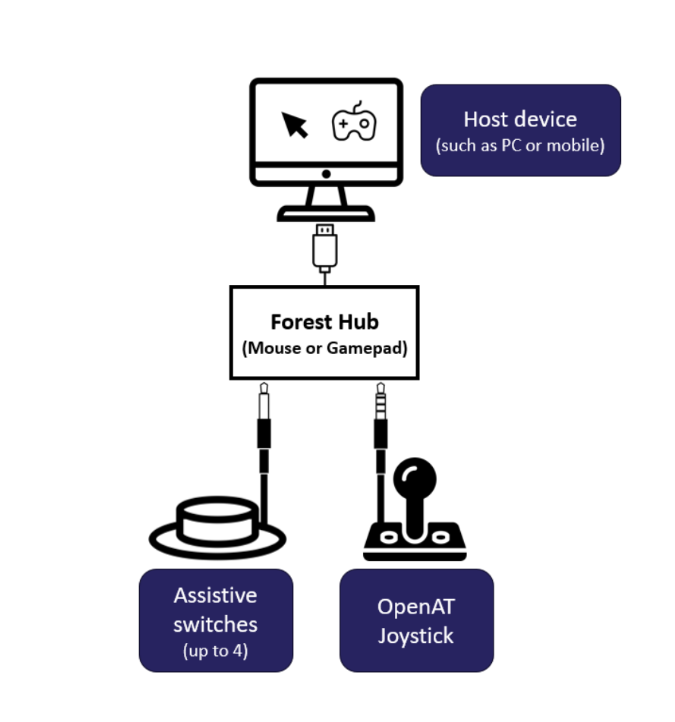
What it works with
- Mouse mode: PC, Mac, Android phones, and iPhones running iOS 13 or newer.
- Gamepad mode: PC and the Xbox Adaptive Controller.
Plugging into a computer
If you have the right cable, the Forest Hub plugs straight into a computer or laptop USB port and works in mouse or gamepad mode. The Hub side needs a USB-C plug. Most computers take either USB-A or USB-C on the other end.
Around $51 to $100 CAD in parts.
Every one of these was printed, wired, and tested by students who just liked building things.
Questions about your Hub, or something not working right? Send us an email and a real person will get back to you.
projectmndx@gmail.com